If Smart DNS isn’t working:
- Confirm you edited DNS for the active network interface (Wi-Fi vs Ethernet).
- Make sure there are no other DNS servers left in the list.
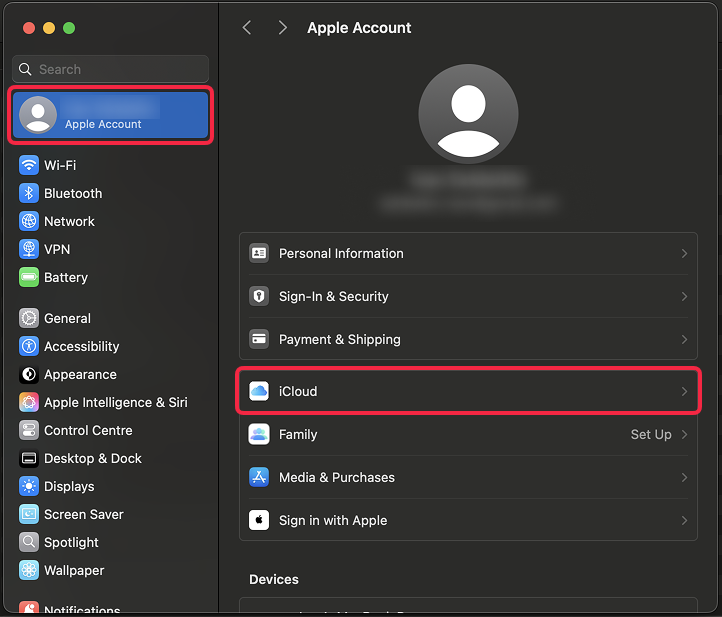
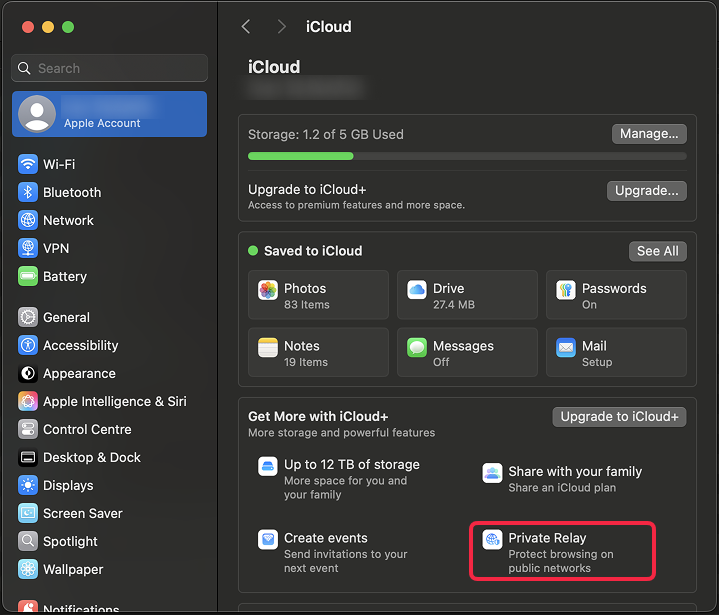
- Disconnect all VPNs and turn off Private Relay.
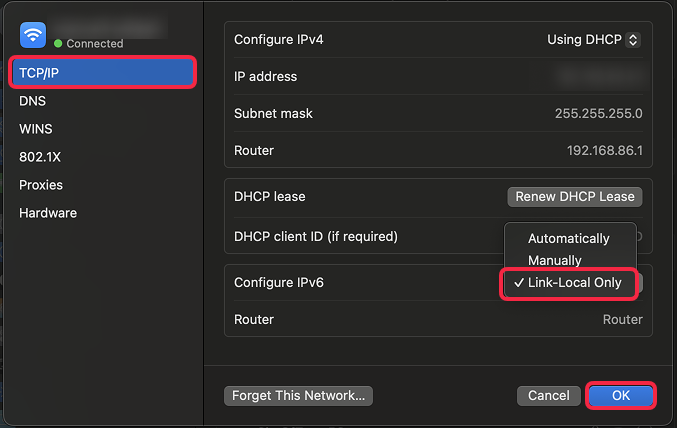
- Make sure IPv6 in your Wi-Fi settings is Disabled (or set to Link-Local Only).
- Try turning Wi-Fi off and back on, or plug/unplug Ethernet.
- To flush the DNS cache on a Mac, open Terminal from Applications > Utilities, and run the command
sudo dscacheutil -flushcache; sudo killall -HUP mDNSResponder. Enter your administrator password when prompted, then press Enter again to complete the process. - If issues persist, revert to automatic DNS and re-apply the Smart DNS addresses.
To turn off iCloud Private Relay:
- Click the Apple menu () → System Settings… (System Preferences in older versions of macOS)
- Click your Apple ID name at the top of the sidebar.
- Click iCloud → iCloud+ → Private Relay.
- Make sure Private Relay is Off.